
AI Website Builder helps you plan, create and change website files through a chat. It is included with ArkHost CMS and Static web hosting. You do not need a separate AI subscription or API key.
Beta: check the generated content and test the website before putting it online. The builder can make mistakes.
1. Open AI Builder
- Sign in to the ArkHost Client Area and open your active web hosting service.
- In the AI Website Builder section, select Open AI Builder.
- The builder opens in your hosting control panel. Select a project before starting a conversation. If you have several websites in the account, check the project's folder: opening the builder does not automatically select the right website.
2. Create a separate working folder
Build changes files directly. There is no separate Publish step. Do not start in your live website's folder.
- Open Login to DirectAdmin from the same hosting service and open File Manager.
- At your account's home level, create a folder named
ai-projects, then createmy-first-siteinside it. Keep this outsidedomains,public_htmland any other public website folder. - Return to the builder. Select + Add New Project from the project selector, or open Projects and select + New Project.
- Enter a project name such as My first website. In Directory Path, enter
ai-projects/my-first-site. The form already shows your account's home-directory prefix; do not enter that prefix twice. The folder must already exist. - Select Create Project and check that the new project is selected.
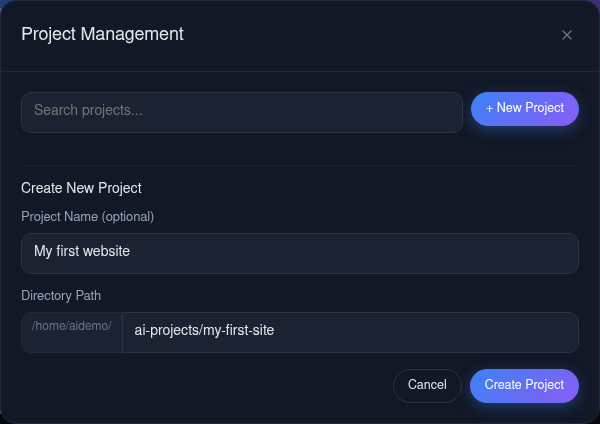
Select a screenshot to open it full size. The form uses a demo hosting account; use the home-directory prefix shown for your own account.
3. Plan, then build
Select the model offered under ArkHost AI. You do not need to connect your own provider for the included service.
- Plan: discuss the pages, content and layout before generating files. This is not a backup or a staging copy.
- Build: allow the AI to create or edit files in the selected project folder.

For a simple first website, choose Build and adapt this prompt:
Create a one-page website for my neighbourhood bakery.
Include an introduction, a menu, opening hours and contact details.
Use a warm, clean design that works on phones and computers.
Use a single index.html file with its CSS and JavaScript included.
Do not use PHP, databases, Node.js, a build step or external libraries.
Use clearly marked placeholders for details I have not supplied.
Do not invent reviews, contact details or business claims.
Work only in this project's folder.
Do not paste passwords, API keys, payment details or private customer information into prompts.
4. Review and refine
Wait for the builder's completion response, then check the files in File Manager. For the single-file example, download index.html and open it in a browser to review the layout without publishing it. If your site has separate images or other assets, keep their folder structure when downloading a review copy.
Request one clear change at a time, for example: Make the opening hours easier to find on mobile. Keep the existing text and page sections.
Check the wording, images, navigation, phone layout and links. A contact form drawn on a page does not necessarily send email: its sending service or backend must be configured and tested separately.
5. Put the finished website online
Keep an independent copy of the finished files and back up any existing live site first. Follow Upload your website with DirectAdmin File Manager to upload the reviewed files to the intended domain's website folder.
For a plain HTML site, index.html belongs directly in that website folder, with any asset folders alongside it. Review overwrite prompts carefully. Do not copy the builder's private project metadata or chat files into the public website folder.
Use the domain connection guide and HTTPS guide where needed. Test the actual public website after uploading; a local preview does not prove that forms, DNS or HTTPS work.
Plan limits and common problems
- Static hosting: use finished HTML, CSS and browser-side JavaScript. Static plans do not run PHP or include databases or email mailboxes.
- CMS hosting: supports PHP and MySQL. Python web applications and server-side Node.js are not supported on shared hosting. Asking the AI to generate them does not add those capabilities to your plan.
- No provider connected or no model selected: first select or create a project for an existing folder, then select the ArkHost AI model. If the problem remains, contact support rather than buying an API key.
- A request appears stuck or fails: use Stop if it is available and wait for the request to end. Check which files changed before retrying, rather than repeatedly sending the same request.
For access or hosting problems, contact ArkHost support with the affected domain, project folder and exact error. Do not send passwords or API keys. Website design, content creation and debugging generated application code are not included in hosting support.
